


LCD1602 Parallel LCD Display with Blue Backlight
16×2 Character Display for Arduino and Microcontroller Projects
Introduction
The LCD1602 display module is a classic parallel interface character LCD featuring a 16×2 character display with blue backlight. These displays use the HD44780 controller or compatible chips and are widely supported in the maker community.
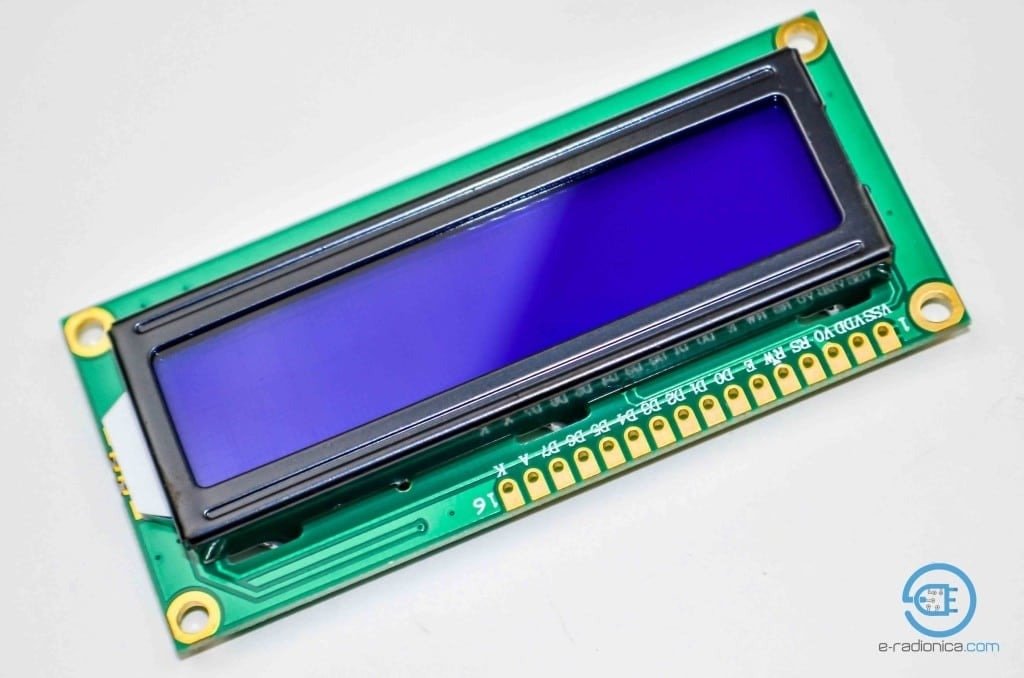 Key Features
Blue Backlight
High-contrast display with adjustable blue backlight
Character Grid
16 columns × 2 rows (32 characters total)
Parallel Interface
4-bit or 8-bit parallel communication
Custom Characters
Supports 8 user-defined characters
Technical Specifications
| Display Type | Character LCD |
|---|---|
| Display Format | 16 columns × 2 rows |
| Controller | HD44780 or compatible |
| Interface | Parallel (4-bit or 8-bit) |
| Operating Voltage | 5V (typically) |
| Backlight | Blue with adjustable brightness |
Pin Configuration
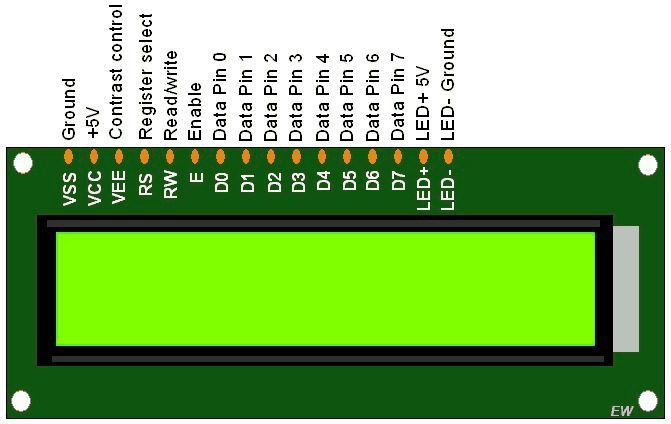
| Pin | Symbol | Description | Arduino Connection |
|---|---|---|---|
| 1 | VSS | Ground | GND |
| 2 | VDD | Power (+5V) | 5V |
| 3 | VO | Contrast adjustment | Potentiometer |
| 4 | RS | Register Select | Digital Pin |
| 5 | RW | Read/Write | GND (for write only) |
| 6 | E | Enable | Digital Pin |
| 7-14 | DB0-DB7 | Data Bus | Digital Pins (4-bit: DB4-DB7) |
| 15 | A | Backlight Anode (+) | 5V via resistor |
| 16 | K | Backlight Cathode (-) | GND |
Note: For 4-bit mode, only DB4-DB7 need to be connected
Wiring with Arduino
4-Bit Mode Connection
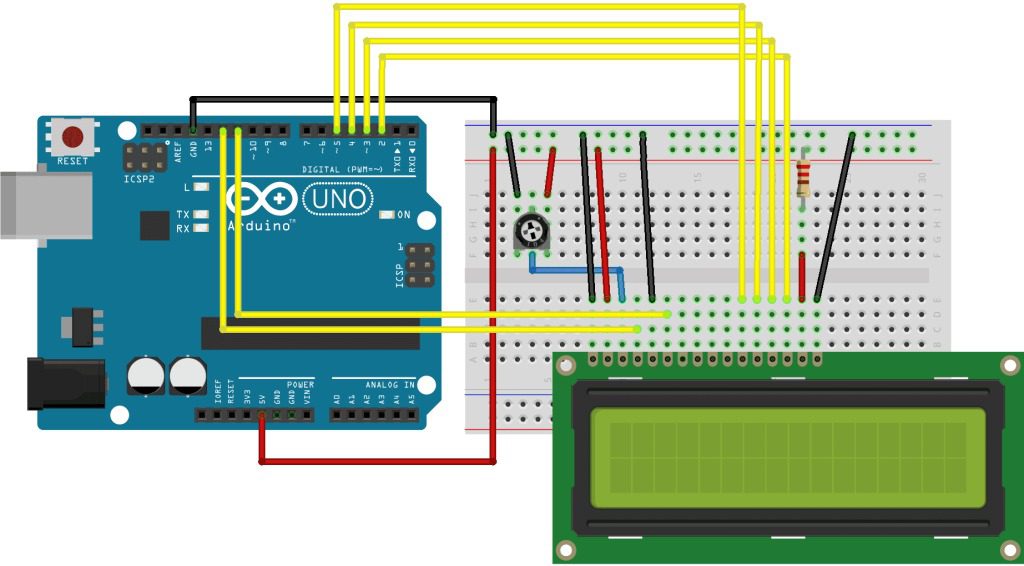
// Typical 4-bit connections:
// LCD RS → Arduino D12
// LCD E → Arduino D11
// LCD D4 → Arduino D5
// LCD D5 → Arduino D4
// LCD D6 → Arduino D3
// LCD D7 → Arduino D2
// LCD R/W → GND
// LCD VSS → GND
// LCD VDD → 5V
// LCD VO → Potentiometer center pin
// LCD A → 5V (with resistor)
// LCD K → GND
Contrast Adjustment
Connect pin 3 (VO) to a 10K potentiometer between VCC and GND for contrast control.
Arduino Library Setup
- Install the LiquidCrystal library (included with Arduino IDE)
- Include the library in your sketch:
#include <LiquidCrystal.h>
- Initialize the display with your pin configuration:
// Initialize with (RS, E, D4, D5, D6, D7)
LiquidCrystal lcd(12, 11, 5, 4, 3, 2);
Basic Display Example
#include <LiquidCrystal.h>

// Initialize the library with pin numbers
LiquidCrystal lcd(12, 11, 5, 4, 3, 2);

void setup() {
  // Set up the LCD's number of columns and rows
  lcd.begin(16, 2);

  // Print a message to the LCD
  lcd.print("Hello, World!");
}

void loop() {
  // Set the cursor to column 0, line 1
  lcd.setCursor(0, 1);

  // Print the number of seconds since reset
  lcd.print(millis() / 1000);
}
Advanced Features
Custom Characters
// Create custom character
byte heart[8] = {
  0b00000,
  0b01010,
  0b11111,
  0b11111,
  0b01110,
  0b00100,
  0b00000,
  0b00000
};

void setup() {
  lcd.createChar(0, heart);
  lcd.write(byte(0));
}
Scrolling Text
void scrollText(String message) {
  for (int i=0; i < message.length(); i++) {
    lcd.scrollDisplayLeft();
    lcd.print(message[i]);
    delay(300);
  }
}
Backlight Control
// Connect backlight through transistor
// or MOSFET for PWM control
void setBacklight(int brightness) {
  analogWrite(backlightPin, brightness);
}
Multiple Displays
// Use different enable pins
LiquidCrystal lcd1(12, 11, 5, 4, 3, 2);
LiquidCrystal lcd2(12, 10, 5, 4, 3, 2);
Troubleshooting
Blank Display
- Adjust contrast potentiometer
- Check power connections (5V and GND)
- Verify backlight is connected properly
Garbled Characters
- Check data pin connections
- Ensure proper initialization (lcd.begin(16, 2))
- Verify RW pin is grounded
Missing Characters
- Check timing (add small delays if needed)
- Verify correct column/row in setCursor()
- Ensure proper contrast setting


